Start in the toolbar's Line Manager when you want to check vehicles for a line. To find the Transport Fever 3 vehicle list, click Buy Vehicles: it opens the Vehicle Store at the nearest compatible depot, with vehicles available for purchase listed in the left column. That is the in-game vehicle list to check after a new unlock notification.
Where do you click to see available vehicles?
Open Line Manager from the toolbar
The window shows lines and depots at the top, vehicles in the middle, and an overview at the bottom. Check that you can see the lines and depots area before looking for the purchase controls.
Use Buy Vehicles for the line
Click Buy Vehicles to open the store through the nearest compatible depot. You have reached the purchase list when the Vehicle Store opens and vehicle entries appear in its left column.
Select a vehicle in the left column
Click an entry to inspect it. The right side shows the selected vehicle's overview, including its photo and key data. Use that panel to check the vehicle you found before deciding to buy it.
The middle area of Line Manager is not the purchase list: it shows vehicles already on the selected lines, plus any you picked in 3D. For vehicles you can buy, go on into the store.
Which store entrance should you use?
Buy Vehicles from a line: recommended for a line-specific check
Use this route when you are checking what you can buy for a particular line. The button finds the nearest compatible depot and opens its store, so you do not have to pick a depot row yourself.
Open the store from a depot row: choose a particular depot
Use the top area of Line Manager when you want to choose the depot yourself. Hover over its row to reveal the additional controls, then use the control that opens that depot's Vehicle Store. The confirmation is the store window, with vehicles available to purchase on the left and selection details on the right. This is the way in when you want a different transport type, since each depot only sells its own type.
Which building gives you the right vehicle list?
Vehicle purchasing happens at depots, hangars, and shipyards. Match the purchase location to the transport type you want to inspect.
| Transport you want to check | Purchase location |
|---|---|
| Road vehicles | Road depot |
| Rail vehicles | Rail depot |
| Water traffic | Shipyard |
| Aircraft | Hangar integrated into an airport |
| Helicopters | Hangar integrated into a heliport |
A dedicated maintenance building can repair passing vehicles, but you cannot buy vehicles there. Use a purchase location to reach the Vehicle Store; a maintenance radius alone does not make a building a shop.
Once the store opens, its layout depends on the vehicle type. Trucks and buses, ships, planes, and helicopters have a simpler layout. Trains and trams can form consists, so their stores offer more functionality.
How do you find a vehicle inside the store?
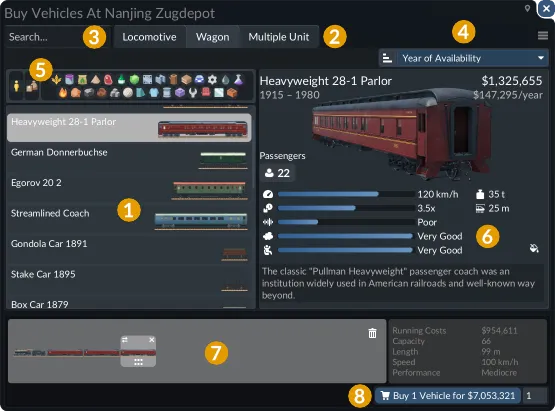
Start with the category tabs (2 in the screenshot). In the train store you can switch between locomotives, wagons, and multiple units, so pick the right tab before looking for a newly unlocked train.
Search (3) sits at the top left and sorting (4) at the upper right. Choose a property such as Year of Availability in the drop-down, then use the button to its left to flip between ascending and descending order.
The cargo bar (5) also filters the list. Selecting several cargo buttons shows only vehicles that carry all of them, not any of them, so one extra selection can hide the vehicle you want. To hide vehicles by region instead, see Filter Vehicles by Region.
What should you check after finding the vehicle?
Select the entry and read the right-hand panel (6). It shows cost, maintenance cost, availability years, and cargo specialization.
The table below the image includes pollution, noise, passenger comfort, loading speed, and technical data. Check the ones that matter for the job before you click Buy (8).
For cargo questions that go beyond locating the list, use Oil Cargo Loading and Compatibility. If your next question concerns combining passenger and cargo vehicles, go to Passenger and Cargo on One Train.
The official vehicle trailer shows many of the trains, trams, buses and ships you will find in these lists:
After the next unlock notification, go back through Line Manager → Buy Vehicles. For planning your first lines, continue with Beginner Tips and Walkthrough.