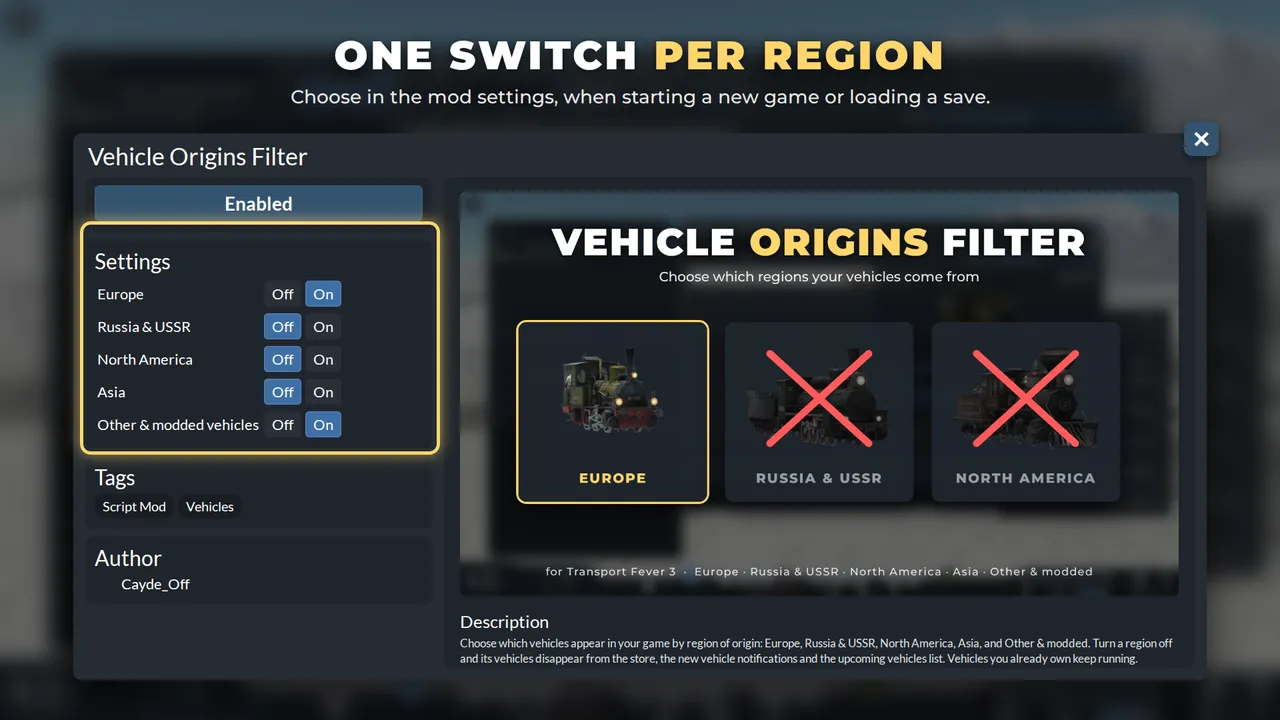
You choose vehicle restrictions when starting a new game or loading a save with a filtering mod enabled. For a Transport Fever 3 vehicle region filter, use Vehicle Origins Filter and switch unwanted regions to Off in its mod settings. Their vehicles disappear from the store, new vehicle notifications, and upcoming vehicles list, while vehicles you already own keep running.
Does choosing a continent restrict your vehicles?
No. Players have reported mixed vehicle origins on region-themed maps: one found a Canadian carriage in a tropical save, another wanted a USA-themed map without European wagons.
Read the map settings separately from the vehicle filter. Climate affects the landscape and appearance, with terrain differences affecting how useful transport modes are. Names, under Civilization, selects lists for town, bus stop, and resident names. Neither one changes which vehicles you can buy.
For European vehicles only, use a vehicle filtering mod, not the names list.
Which filtering mod should you choose?
Vehicle Origins Filter: recommended for region switches
Choose this when your main goal is to remove unwanted origins from the purchase selection. It provides five switches: Europe, Russia & USSR, North America, Asia, and Other & modded vehicles. Base-game vehicles are classified by hand, and hidden vehicles are also skipped by New Vehicle Popup and Upcoming Vehicles.
Each group has its own On or Off control. The catch is Other: it also holds shared vehicles you probably still want (see below).
Vanilla Vehicle Filter (Land): for more specific land filters
Choose this if you also want filters by vehicle type or era. It has separate European, US, and Asian filters for wagons, locomotives, and multiple units, an Era I rail filter, and road filters for up to 1945, 1945 to 1980, 1980 to 2000, and 2000 onward.
Ships and aircraft are unaffected. Missing optional or Deluxe Edition vehicles are safely ignored.
How do you enable the five region switches?
Get Vehicle Origins Filter ready
Subscribe to Vehicle Origins Filter on mod.io and download it in game. When setting up the game, open Add Mods and use Activate for the mod you want. Confirm that Vehicle Origins Filter is enabled before choosing its settings. If locating installed mod files is your sticking point, see Find and Move the Mod Folder.
Open the settings for your new game or save
For an existing game, open Load Game and use the save card's settings control to adjust its active mods, where the save allows editing. Open Vehicle Origins Filter's settings. You should see the five region names, each with Off and On choices.
Keep the origins you want and turn the others off
For a European fleet, leave Europe on and turn Russia & USSR, North America, and Asia off. For a North American fleet, leave North America on and turn the other named regions off. In either case, keep Other & modded vehicles on initially. Before starting or loading, check that the unwanted region rows show Off and your chosen region shows On.
Check the purchase selection after loading
Look at the vehicles offered in the store. Vehicles assigned to disabled regions should be absent, and those regions should also disappear from new vehicle notifications and the upcoming vehicles list. Vehicles already on your lines stay; see Find the Unlocked Vehicle List for where the store is.
Should you leave Other & modded vehicles on?
On: recommended when setting up your fleet
This group includes generic freight wagons, horse carts, DLC vehicles, and modded vehicles. Keep it on if you need shared freight equipment or have added vehicle mods. An American train mod belongs to Other & modded, so switching that group off can hide it even while North America remains on.
One player found that filtering down to US vehicles left too little rolling stock for an early start. Keeping Other on lets you restrict the named regions without losing the shared freight wagons.
Off: a stricter selection with fewer shared vehicles
Turn Other off only if you also want its generic, DLC, and modded vehicles removed from the store. After loading, check that your purchase selection still includes the freight equipment you need. If a wanted modded vehicle disappears, return to the filter settings when loading the save and turn Other back on.
What happens to your existing fleet?
Your purchased vehicles keep operating. The filter changes availability; it does not delete vehicles you own. An old locomotive from a disabled region still running is normal; what matters is that the store no longer offers that region's vehicles.
Vehicle Origins Filter changes gameplay, not just visuals, and its author says achievements may be disabled. Think twice if achievements matter for this save.
Next, check what you can buy in Find the Unlocked Vehicle List, or plan your first lines with Beginner Tips and Walkthrough. To remove the mod later, see Find and Uninstall Mods.